Thursday, January 31, 2008

DVD Recording procedure

Burn DVD
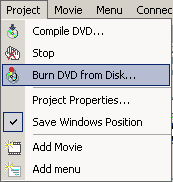
Menu: Project - Burn DVD from disk
This is the last step in the DVD creation process.
With our DVD Project having been Compiled, there are a set of files that DVD-lab has prepared for you in the Output folder as set in the Compile process. At this point, the DVD Author has choices as to how to convert this set of files into a DVD master disc. You can either use the DVD-lab built-in recording module or you can choose to use a third party DVD recording software such as Nero, Prassi, Gear, etc...


It is common that you are supplied with a DVD recording software that was bundled with your DVD-R/DVD+R burner. This software may be better optimized for your particular drive. The DVD-lab built-in DVD recording module is a general ASPI writing application and should work fine. In an ideal world, either one would work equally well.
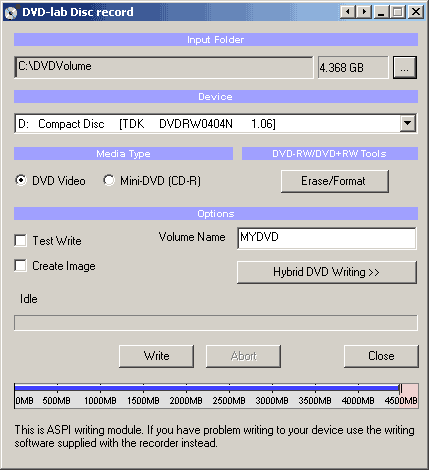
DVD-lab Disc record window
The DVD-lab Disc record window is automatically detached. That means it runs as a separate process independent from DVD-lab, you could even close DVD-lab and the recording will continue.

Here are some of the parameter choices for the DVD-lab Disc record window.
Input Folder
The Input Folder is the same as the Output folder in Compile. That means this is the folder where the VIDEO_TS and AUDIO_TS folders are expected to be.
Device
The DVD recording drive you want to write to, presented as the O/S recognizes it.
Media Type
Set if you want to burn DVD Video or a Mini-DVD.Mini-DVD is a DVD format burned on the CD-R. Obviously you can put far less data on a CD-R (about 700 MB) than on DVD (4.3 GB)


The size indicator on the bottom can help you to determine how much data you can record to the disc. You have to keep your data below the red area.

Note: While you will be able to play the CD-R on a computer not all standalone players will be able to play the Mini-DVD. In fact such format is not officially supported. The reason is that CD's have far less density of data so in order to play the large DVD video bitrate they have to spin much faster than DVD. Not all DVD drives in players are ready for this so the functionality to DVD files from CD-R is often simply disabled. However a number of Asian or re-branded Asian US models of players use a standard PC type of DVD drive which allows for fast spin of CD.
DVD-RW/DVD+RW Tools
For those using a re-writable media, the DVD-RW needs to be formatted if they were already used - click the Erase/Format button to do this. The more common DVD-R media do not need any formatting.
The DVD-RW and +RW needs to be finalized after writing. This takes quite a large amount of time on RW media. Please be patient until this important process is completed.
Options
Test Write checkboxUse this option by checking the Test Write checkbox to have DVD-lab do a trial run at writing a DVD. This option does not write anything to disk or your hard drive, it merely goes through the motions to insure that all of the content and menus within the DVD project are correctly prepared and defined.
Volume Name inputEnter here a name for the DVD volume that will appear when placed in a computer drive. A standalone DVD player just ignores this.
Create Image checkboxYou can choose to have DVD-lab create a large file on your hard drive which is an the image of a DVD disc instead of burning. The result will be one big IMG file. That IMG file can be used with a number of third party DVD recording software to replicate a DVD disc from this image file, as many times as you like, whenever you like. Some software will look for a ISO file name extension, if so, just rename the file to a .ISO extension. This method has the advantage of speed as the DVD image is all prepared on your hard drive, it is then a just matter of how fast your DVD burner drive will burn that image.
Hybrid DVD Writing buttonYou can add additional files and folders to the DVD master disc with the Hybrid DVD Writing option. What this option will do is setup an alternate filesystem on the DVD master disc which is called an ISO filesystem. The ISO format is what a standard CD uses while the DVD video is in UDF/ISO. This is perfectly DVD "legal" as the DVD player doesn't know or care about this ISO filesystem's contents, it just looks for a UDF filesystem.
It doesn't matter at all what the content or nature of these files are. They are just files, not Windows or Mac or Linux files, just files. As they are recorded into the ISO file system domain, they are available on any computer with a DVD drive. This offers the DVD-lab Author some creative options for bonus content that would be available to a computer user on any O/S that supports a DVD drive.

For example, you can create an autorun project in Multimedia Builder and record it to DVD as an extra feature when used on PC. HTML based content may be placed here as well, be sure to indicate to your computer users where to find your HTML starting page (ex: index.html).
Note: The space used by the Hybrid DVD Writing option counts in the entire Project space value. You only get so much space on a DVD (4.7G), this option uses part of that. Do the math to be sure you have room for this extra area.
Write buttonAs expected, click this button to start the DVD writing (burn) process.
Note: It is not recommended to do any work on the computer during DVD writing. Things like reading/writing to hard-drive may easily ruin your DVD-R. Try to let the burning process be the only thing your computer is running until it is completed.

Congratulations - now it is up to you to enjoy the DVD.


Wednesday, January 23, 2008

CPU type Package

FC-LGA4 Package TypeThe FC-LGA4 package is used with Pentium® 4 processors designed for the LGA775 socket. FC-LGA4 is short for Flip Chip Land Grid Array 4. FC (Flip Chip) means that the processor die is on top of the substrate on the opposite side from the LAND contacts. LGA (LAND Grid Array) refers to how the processor die is attached to the substrate. The number 4 stands for the revision number of the package.This package consists of a processor core mounted on a substrate land-carrier. An integrated Heat Spreader (IHS) is attached to the package substrate and core and serves as the mating surface for the processor component thermal solution such as a heatsink.You may also see references to processors in the 775-LAND package. This refers to the number of contacts that the new package contains that interface with the LGA775 socket.The pictures below include the LAND Slide Cover (LSC). This black cover protects the processor contacts from damage and contamination and should be retained and placed on the processor whenever it is removed from the LGA775 socket.


FC-PGA2 Package TypeFC-PGA2 packages are similar to the FC-PGA package type, except these processors also have an Integrated Heat Sink (IHS). The integrated heat sink is attached directly to the die of the processor during manufacturing. Since the IHS makes a good thermal contact with the die and it offers a larger surface area for better heat dissipation, it can significantly increase thermal conductivity. The FC-PGA2 package is used in Pentium III and Intel Celeron processor (370 pins) and the Pentium 4 processor (478 pins).


FC-PGA Package TypeThe FC-PGA package is short for flip chip pin grid array, which have pins that are inserted into a socket. These chips are turned upside down so that the die or the part of the processor that makes up the computer chip is exposed on the top of the processor. By having the die exposed allows the thermal solution can be applied directly to the die, which allows for more efficient cooling of the chip. To enhance the performance of the package by decoupling the power and ground signals, FC-PGA processors have discrete capacitors and resistors on the bottom of the processor, in the capacitor placement area (center of processor). The pins on the bottom of the chip are staggered. In addition, the pins are arranged in a way that the processor can only be inserted one way into the socket. The FC-PGA package is used in Pentium® III and Intel® Celeron® processors, which use 370 pins.


OOI Package TypeOOI is short for OLGA. OLGA stands for Organic Land Grid Array. The OLGA chips also use a flip chip design, where the processor is attached to the substrate facedown for better signal integrity, more efficient heat removal and lower inductance. The OOI then has an Integrated Heat Spreader (IHS) that helps heatsink dissipation to a properly attached fan heatsink. The OOI is used by the Pentium 4 processor, which has 423 pins.


PGA Package TypePGA is short for Pin Grid Array, and these processors have pins that are inserted into a socket. To improve thermal conductivity, the PGA uses a nickel plated copper heat slug on top of the processor. The pins on the bottom of the chip are staggered. In addition, the pins are arranged in a way that the processor can only be inserted one way into the socket. The PGA package is used by the Intel Xeon™ processor, which has 603 pins.


PPGA Package TypePPGA is short for Plastic Pin Grid Array, and these processors have pins that are inserted into a socket. To improve thermal conductivity, the PPGA uses a nickel plated copper heat slug on top of the processor. The pins on the bottom of the chip are staggered. In addition, the pins are arranged in a way that the processor can only be inserted one way into the socket. The PPGA package is used by early Intel Celeron processors, which have 370 pins.


S.E.C.C. Package TypeS.E.C.C. is short for Single Edge Contact Cartridge. To connect to the motherboard, the processor is inserted into a slot. Instead of having pins, it uses goldfinger contacts, which the processor uses to carry its signals back and forth. The S.E.C.C. is covered with a metal shell that covers the top of the entire cartridge assembly. The back of the cartridge is a thermal plate that acts as a heatsink. Inside the S.E.C.C., most processors have a printed circuit board called the substrate that links together the processor, the L2 cache and the bus termination circuits. The S.E.C.C. package was used in the Intel Pentium II processors, which have 242 contacts and the Pentium® II Xeon™ and Pentium III Xeon processors, which have 330 contacts.


S.E.C.C.2 Package TypeThe S.E.C.C.2 package is similar to the S.E.C.C. package except the S.E.C.C.2 uses less casing and does not include the thermal plate. The S.E.C.C.2 package was used in some later versions of the Pentium II processor and Pentium III processor (242 contacts).


S.E.P. Package TypeS.E.P. is short for Single Edge Processor. The S.E.P. package is similar to a S.E.C.C. or S.E.C.C.2 package but it has no covering. In addition, the substrate (circuit board) is visible from the bottom side. The S.E.P. package was used by early Intel Celeron processors, which have 242 contacts.


Tuesday, January 15, 2008

Types of form factor..

Form factors
As mentioned earlier, motherboards are classified by form factors. Form factors essentially define the layout of the actual motherboard including the dimensions, component positioning, mounting holes, number of expansion slots, and so on. There are several different types of form factors including:
AT/Baby AT
ATX
LPX
BTX
NLX
The following sections will outline some of the characteristics of each of the form factors listed above, starting with the AT/Baby AT.
AT/Baby AT
The Advanced Technology (AT) was the original IBM form factor design, on which the processor, memory and expansion slots were all arranged in a straight line as shown in Figure A.
Figure A

AT was the original IBM form factor design.
This posed a problem for full length expansion cards because the height of the processor interfered with proper card installation. In addition, heat dissipation from the processor sometimes caused problems for the expansion cards. The AT form factor also caused problems with the drive bays. The width of the board was 12" wide and 13.8" deep which overlapped with the space required for drive bays.
The Baby AT was a smaller version of the AT, only 9" wide and 13" deep, with newer, smaller components. It was a more compact board, but had the same drawbacks as the AT. In a home PC this is rarely an issue. However, in servers, many expansion cards are full length. Traditionally servers are not designed around the Baby AT form factor.
As motherboards have evolved over the years, the AT/Baby AT form factors have become obsolete.
ATX
The ATX form factor was designed to overcome the problems associated with the AT/Baby AT form factors. As shown in Figure B, the ATX component layout is different from the AT. In the ATX form factor, the processor and memory are arranged at a right angle to the expansion slots, allowing room for the use of full-length expansion cards. In the newer computers, the combined height of the processor, heat sink, and cooling fan make it possible to insert full length cards in any other form factor, and most new computers (including servers) are built around the ATX form factor


The ATX form factor is different than that of the AT/Baby AT form factor
ATX motherboards also offer advanced power management features that make them ever more attractive to computer builders. For example, ATX motherboards offer a soft shutdown option, allowing the operating system to completely power down the computer without the user's having to press the power switch.
A full size ATX board is 12" wide and 9.6" deep. There is also a smaller version referred to as the Mini-ATX board, is 11.2" wide and 8.2" deep.
MicroATX
The MicroATX, introduced by Intel in 1997, is a compatible variation to the ATX board outlined above. As the name would imply, the MicroATX is smaller than the standard ATX board because of the reduced number of I/O slots on the board. Due to the fact that it is smaller than the standard ATX board, the MicroATX form factor reduces the cost of computers and is often used in lower-cost systems.
FlexATX
The FlexATX form factor was released by Intel as an addition to the MicroATX. This form factor, which is smaller than the MicroATX, is designed for lower-end, smaller, consumer orientated systems. Some FlexATX boards do not even include expansion slots which mean expansion is only possible through USB or firewire ports.
LPX
The LPX form factor is not a standard one but a non-standard proprietary one sometimes found in desktop computer models (as opposed to towers or mini towers). This form factor is characterized by an expansion board that runs parallel to the motherboard. A riser card arrangement is used for expansion cards thereby allowing for smaller cases. The disadvantage is that this limits the number of expansion cards available.
LPX motherboards are typically integrated and most have the video and sound components built-in. However, due in part to the fact that the form factor is non-standardized, the ATX form factor is more popular.
BTX
Balanced Technology Extended (BTX) form factor was released in 2003 by Intel. Unlike other form factors, this one did not evolve from an older form factor. Instead, it was a completely new form factor.
As shown in Figure C, the BTX form factor allows for more integrated onboard components because it is larger than ATX. The airflow path is optimized by moving the memory slots and expansion slots. This allows the main system board components to use the same airflow thereby requiring fewer fans and reducing noise.

Balanced Technology Extended (BTX) form factor was released in 2003 by Intel.
The three motherboards included in the BTX form factor are outlined below.
PicoBTX - This is the smallest BTX motherboard form factor. It uses four mounting holes and one expansion slot.
microBTX - This form factor is slightly smaller than the regular BTX but larger than the PicoBTX. It uses seven mounting holes and four expansion slots.
BTX - Also referred to as regularBTX, is the largest BTX form factor. It uses up to ten mounting holes and supports a maximum of seven expansion slots.
NLX
NLX has been a form factor in use with desktops for quite some time. It is a compact form factor, often referred to as a "low-profile application". NLX motherboards are easily distinguished by the riser card to which the expansion cards connect. The riser cards allow from two to four expansion cards to be plugged in. These expansion cards sit parallel to the motherboard.
Servers with this form factor offer power that is similar to the larger traditional servers, but in the size of a VCR. The obvious benefit of the NLX form factor is that the bulk of a traditional server is reduced to a space-saving smaller server. Additionally, servers assembled in a rack mount case can be secured to a rack, which can itself be secured to the floor, providing better equipment safety.
Table A summarizes the form factors outlined above, including what they are typically used for and the maximum number of slots.
Table A


Thursday, December 13, 2007

Windows 2000 Installation Procedure

How To Install Windows 2000 Professional
Installing Windows 2000 ProfessionalTo install Windows 2000 Professional, follow these steps:1.Start the installation by using one of the following methods:•Start from the Windows 2000 Professional installation CD-ROM. Make sure that the CD-ROM is set to start before the hard disk starts. Insert the CD-ROM, and then when you are prompted, press any key to start the Windows 2000 Professional Setup program.•Start from boot disks. Insert Disk 1, and then insert each of the remaining three floppy disks when you are prompted to do so. For additional information about creating boot disks for Windows 2000, click the article number below to view the article in the Microsoft Knowledge Base: 197063 (http://support.microsoft.com/kb/197063/EN-US/) How to Create Setup Boot Disks for Windows 2000•Start from within a current operating system. Insert the CD-ROM, and then, at a command prompt, type drive:\i386\winnt32.exe and then press ENTER, or if this is an installation on a computer that has no previous installation of Windows, type drive:\i386\winnt.exe and then press ENTER, where drive is the letter of the CD-ROM drive.2.Setup inspects your computer's hardware configuration and then begins to install the Setup and driver files. When the Microsoft Windows 2000 Professional screen appears, press ENTER to set up Windows 2000 Professional.3.Read the license agreement, and then press the F8 key to accept the terms of the license agreement and continue the installation.4.When the Windows 2000 Professional Setup screen appears, either press ENTER to set up Windows 2000 Professional on the selected partition, or press C to create a partition in the unpartitioned space.5.If you choose to install Windows 2000 Professional on a file allocation table (FAT) partition, specify whether you want to:•Leave the current file system intact.•Format the partition as FAT16.•Convert the existing file system to the NTFS file system.•Format the partition by using the NTFS file system.Press ENTER after you make your selection. Setup examines the existing hard disks and then copies the files that are needed to complete the installation of Windows 2000 Professional. After the files are copied, the computer restarts.Important Do not press a key to boot from your CD-ROM drive when your computer restarts.6.When the Windows 2000 GUI Mode Setup Wizard appears, click Next to start the wizard. Setup detects and installs such devices as a specialized mouse or keyboard.7.When the Regional Options dialog box appears, customize your installation of Windows 2000 Professional for locale, number format, currency, time, date, and language, if necessary. Click Next.8.In the Personalize Your Software dialog box, type your name and the name of your organization, and then click Next.9.In the Product ID dialog box, type the 25-character product key, and then click Next.10.In the Computer Name and Password dialog box, either accept the default name that Setup generates or assign a different name for the computer. When you are prompted for an administrative password, type a password for the Administrator account. (You can leave the box blank; however, this is not recommended.) Click Next.11.In the Date and Time Settings dialog box, set the correct date and time for your computer. You can also specify which time zone you are in and set the computer to automatically adjust the clock for daylight saving time. Click Next.12.Setup installs the networking software and detects your network settings. When the Network Settings dialog box appears, click either•Typical to set default network settings such as File and Print Sharing for Microsoft Networks, Client for Microsoft Networks, and TCP/IP protocol that uses Dynamic Host Configuration Protocol (DHCP), or•Custom to specify the network components that you require for your network environment,and then click Next.13.In the Workgroup or Computer Domain dialog box, specify the workgroup or the domain to join. If you indicate that you are part of a domain, specify your domain user name and password. Click Next.Setup installs the networking components.14.During the final stage of installation, Setup installs Start menu items, registers components, saves settings, and removes temporary files. When the Completing the Windows 2000 Setup Wizard dialog box prompts you to do so, remove the Windows 2000 CD-ROM, and then click Finish to restart the computer.15.After the computer restarts, click Next in the Welcome to the Network Identification Wizard dialog box.16.In the Users of This Computer dialog box, specify either that users must enter a user name and password or that you want Windows 2000 to automatically log on a specific user when the computer starts. Click Finish.When the Windows 2000 Professional desktop appears, the installation is complete.

Windows 98 Installation Procedure

How to Install Windows 98 on a Computer
Determine Which Product to UseTo install Windows 98, you must have one of the following products: •The "Microsoft Windows 98 Upgrade" product. This upgrade product is available on CD-ROM. When you use the Windows 98 Upgrade version, you must have a copy of the previous version of Windows on CD-ROM or on floppy disks for the compliance-check procedure during Setup. Make sure that you have your qualifying version of Windows on CD-ROM or on floppy disks before you run Setup. Note that you must also have a Windows 98 Startup disk to install this product.For additional information about how to create a Windows 98 Startup disk, click the article number below to view the article in the Microsoft Knowledge Base:How to Create a Windows 98 Startup Disk that Supports FAT32•The "Microsoft Windows 98 for PCs Without Windows" product. This version is available on CD-ROM. A Windows 98 Startup disk is included with the product.Minimum Hardware Requirements to Install Windows 98The minimum hardware requirements include:•486DX 66-MHz or faster processor (Pentium recommended)•16 megabytes (MB) of memory (24 MB recommended)•195 MB of free hard disk space (the required space may vary from 120 MB to 295 MB, depending on your computer's configuration and the options you choose to install)•CD-ROM or DVD-ROM drive•3.5-inch high-density floppy disk drive•Video adapter and monitor that support VGA or higher resolution•Microsoft Mouse or compatible pointing deviceFor additional information about the minimum hardware requirements, click the article number below to view the article in the Microsoft Knowledge Base:Minimum Hardware Requirements for Windows 98System Updates, Device Drivers, and Other ConsiderationsCMOS Antivirus UtilityIt is important to disable any CMOS antivirus utility that is enabled on your computer before you run Setup. If you are not sure if this feature is enabled on your computer, view the documentation that is included with your computer, or contact the computer manufacturer.Drive Overlay SoftwareIf your computer uses drive overlay software to enable large hard disk support, the drive overlay software must be installed before you install Windows 98. To install the drive overlay software, view the documentation that is included with the software or contact the software manufacturer.System Updates and Device DriversTo ensure that your hardware and software is compatible with Windows 98, verify that you have the latest drivers, Basic Input Output System (BIOS), or patches for your hardware and software before you run Setup.If your computer uses proprietary hardware and you try to install Windows 98 on a clean hard disk, you may receive error messages. Before you install the retail or upgrade version of Windows 98 on your computer, check with the hardware manufacturer and verify that there are no known issues. Also, if your current version of Windows was preinstalled on your computer and was bundled with a software package that is on a Restore CD-ROM, you may not be able install the programs that are on the Restore CD-ROM. If this is the case, use the hardware manufacturer's Restore CD-ROM to install Windows 95 and the included programs first, and then run Setup from the Windows 98 Upgrade version. View your original hardware documentation if you are not sure how to run the Restore CD-ROM.WARNING: When you run the Restore CD-ROM, it may delete all of the data on your hard disk.Real-Mode CD-ROM SupportThe Windows 98 Startup disk contains generic CD-ROM drivers that work with most CD-ROM drives. The Windows 98 Startup disk contains generic, real-mode ATAPI CD-ROM and small computer system interface (SCSI) drivers that can enable CD-ROM drives after you boot from the Windows 98 Startup disk. These CD-ROM drivers are not guaranteed to work with all CD-ROM drives. They may work as a replacement driver if the real-mode CD-ROM drivers that are included with your CD-ROM drive are not available. If these drivers do not work with your CD-ROM drive, view the documentation that is included with your hardware, or contact your hardware manufacturer.How to Prepare the Hard Disk for the Windows 98 Installation ProcedureWARNING: The following information applies to preparing an empty hard disk for the installation of Windows 98. If you use the following steps on a hard disk that is not empty, all of the data that is on that hard disk is deleted.Before you install Windows 98 on an empty hard disk, you must first create a primary partition and then format a file system on that partition. Each allocated space on the hard disk (primary partition or logical drive) is assigned a drive letter. Windows 98 supports the FAT16 and FAT32 file systems. When you run the Fdisk tool on a hard disk that is larger than 512 MB, you are prompted to choose a file system.The FAT16 file system has a maximum of 2 gigabytes (GB) for each allocated space, or drive letter. For example, if you use the FAT16 file system and you have a 6-GB hard disk, you can have three drive letters (C, D, and E), each with 2 GB of allocated space.The FAT32 file system supports drives up to 2 terabytes in size and stores files on smaller sections of the hard disk than does the FAT16 file system. This results in more free space on the hard disk. The FAT32 file system does not support drives that are smaller than 512 MB. For additional information about the FAT32 file system, click the article numbers below to view the articles in the Microsoft Knowledge Base:SystemMaximum Partition Size Using FAT16 File System More information about file systems is also available in the "Getting Started" manual that is included with the Windows 98 CD-ROM.For additional information about the Fdisk tool, click the article number below to view the article in the Microsoft Knowledge Base:The Four Steps Needed to Make a Hard Disk UsableHow to Partition the Hard DiskAfter you decide which file system you want to use, run the Fdisk tool:1.Insert the Windows 98 Startup disk in the floppy disk drive, and then restart your computer.2.When the Microsoft Windows 98 Startup menu is displayed, choose the Start computer without CD-ROM support option, and then press ENTER.3.At a command prompt, type fdisk, and then press ENTER.4.If the hard disk is larger than 512 MB, you receive the following prompt:Your computer has a disk larger than 512 MB. This version of Windows includes improved support for large disks, resulting in more efficient use of disk space on large drives, and allowing disks over 2 GB to be formatted as a single drive.IMPORTANT: If you enable large disk support and create any new drives on this disk, you will not be able to access the new drive(s) using other operating systems, including some versions of Windows 95 and Windows NT, as well as earlier versions of Windows and MS-DOS. In addition, disk utilities that were not designated explicitly for the FAT32 file system will not be able to work with this disk. If you need to access this disk with other operating systems or older disk utilities, do no enable large drive support.Do you wish to enable large disk support (Y/N)? If you want to use the FAT32 file system, press Y, and then press ENTER. If you want to use the FAT16 file system, press N, and then press ENTER.5.After you press ENTER, the Fdisk Options menu is displayed. Press 1 to select the Create DOS partition or Logical DOS Drive option, and then press ENTER.6.Press 1 to select the Create Primary DOS Partition option, and then press ENTER.7.After you press ENTER, you receive the following prompt:Do you wish to use the maximum available size for primary DOS partition?FAT32 File System:a. If you chose the FAT32 file system in step 4 and you want all of the space on the hard disk to be assigned to drive C, press Y, and then press ENTER.b. Press ESC, and then press ESC to quit the Fdisk tool and return to a command prompt.c. Skip to step 10.FAT16 File System:a. If you chose the FAT16 file system in step 4, and you want the first 2 GB on the hard disk to be assigned to drive C, press Y, and then press ENTER.b. Press ESC to return to the Options menu, and then skip to step i.c. If you want to customize the size of the partitions (the logical drives) on the hard disk, press N, and then press ENTER.d. A prompt is displayed for you to type the size that you want for the primary partition in megabytes or percent of disk space. Note that for a Windows 98-based computer, Microsoft recommends that you make the primary partition at least 500 MB. Type the size of the partition that you want to create, and then press ENTER.e. Press ESC to return to the Options menu.f. Press 2 to select the Set active partition option, and then press ENTER.g. When you are prompted to type the number of the partition that you want to make the active partition, press 1, and then press ENTER.h. Press ESC to return to the Options menu.i. To assign drive letters to the additional space on the hard disk:1.Press 1, and then press ENTER.2.Press 2 to select the Create Extended DOS Partition option, and then press ENTER.3.The option that appears displays the maximum space that is available for the extended partition. You can adjust the size of the partition or you can use the default size. Note that the default maximum space is recommended, but the space can be divided between multiple drive letters. Type the amount of space that you want, press ENTER, and then press ESC.4.The Create Logical DOS Drive(s) in the Extended DOS Partition menu is displayed. This is the menu that you use to assign the remaining hard disk space to the additional drive letters. Type the amount of space that you want to assign to the next drive letter at the Enter logical drive size in Mbytes or percent of disk space (%) prompt, and then press ENTER.5.A table that lists the drive letter that you created and the amount of space that is on that drive is displayed. If there is still free space on the hard disk, it is displayed near the bottom of the table. Repeat steps 1 through 4 until you receive the following message:All available space in the Extended DOS Partition is assigned to local drives6.After you receive this message, press ESC, and then press ESC to quit the Fdisk tool and return to a command prompt.8.After you create the partitions, restart you computer with the Windows 98 Startup disk in the floppy disk drive.9.When the Windows 98 Startup menu is displayed, choose the Start computer without CD-ROM support option, and then press ENTER.10.When a command prompt is displayed, type format c:, and then press ENTER.NOTE: If you receive a "Bad command or file name" message, you may need to extract the Format.com utility to your Startup disk. To do this, type the following command at a command prompt, and then press ENTER:extract ebd.cab format.comAfter the Format.com utility is extracted to your Startup disk and a command prompt is displayed, type format c:.11.When you successfully run the Format.com utility, you receive the following prompt:WARNING, ALL DATA ON NON-REMOVABLE DISK DRIVE C: WILL BE LOST!Proceed with Format (Y/N)? Press Y, and then press ENTER to format drive C.12.After the format procedure is finished, you receive the following prompt:Volume label (11 characters, ENTER for none)? This is an optional feature that you can use to type a name for the hard disk. Type an 11-character name for the drive, or leave it blank, and then press ENTER.13.Repeat steps 10 through 13 for any additional drive letters that you created in step i.How to Install Windows 98After you partition and format your hard disk, you can install Windows 98:1.Insert the Windows 98 Startup disk in the floppy disk drive, and then restart your computer.2.When the Windows 98 Startup menu is displayed, choose the Start computer with CD-ROM support option, and then press ENTER.3.If CD-ROM support is provided by the generic drivers on the Startup disk, you receive one of the following messages, where X is the drive letter that is assigned to your CD-ROM drive:Drive X: = Driver MSCD001Drive X: = Driver OEMCD001 NOTE: If your CD-ROM drive is not available after you boot from the Windows 98 Startup disk, install the CD-ROM drivers that are included with your CD-ROM drive. For information about how to obtain and install the most current driver for your CD-ROM drive, view the documentation that is included with your device, or contact your hardware manufacturer.4.Insert the Windows 98 CD-ROM in the CD-ROM drive, type the following command at a command prompt, and then press ENTERX:\setupwhere X is the drive letter that is assigned to your CD-ROM drive.5.When you receive the following message, press ENTER, and then follow the instructions on the screen to complete the Setup procedure:Please wait while the Setup initializes. Setup is now going to perform a routine check on your system. To continue press Enter.

Tuesday, December 4, 2007

Windows Vista Migration Step-by-Step Guide

The Microsoft® Windows Vista™ operating system introduces new setup methods and processes, based on the new image-based setup feature of Windows Vista. This document provides the steps to use when upgrading a computer from the Microsoft Windows® XP Professional operating system or the Microsoft Windows XP Home Edition operating system to Windows Vista, and also how to migrate existing files and settings from Windows XP to Windows Vista.
Windows Vista Migration Scenarios
This document covers two primary scenarios for installing Windows Vista: upgrading an existing Windows XP computer "in-place" on the same computer hardware, and migrating user settings to a new computer running Windows Vista. If you purchase a new computer to run Windows Vista and want to move your files and settings from Windows XP to the new computer running Windows Vista, refer to the "Migrating to Windows Vista" scenario. If you are planning to install Windows Vista on a computer running Windows XP, refer to the "Upgrading to Windows Vista" scenario.

Upgrading to Windows Vista
if(typeof(IsPrinterFriendly) != "undefined") { var l = "/WindowsVista/en/library/1a3fbe72-9de8-4b94-b254-586a61843a041033.mspx#BKMK_U"; var nl; var c = l.charAt(0); var o = document.getElementById("EM"); switch (c){ case "/": nl=(" [http://" + document.domain + l + "]"); break case "#": nl=(""); break default: nl=" [" + l + "]" } if(o != null) o.innerHTML = nl; }

This scenario assumes that you are installing Windows Vista on a computer running Windows XP Professional or Windows XP Home Edition.

Migrating to Windows Vista
if(typeof(IsPrinterFriendly) != "undefined") { var l = "/WindowsVista/en/library/1a3fbe72-9de8-4b94-b254-586a61843a041033.mspx#BKMK_M"; var nl; var c = l.charAt(0); var o = document.getElementById("ET"); switch (c){ case "/": nl=(" [http://" + document.domain + l + "]"); break case "#": nl=(""); break default: nl=" [" + l + "]" } if(o != null) o.innerHTML = nl; }

This scenario assumes that you are installing Windows Vista on a new computer, and then transferring your user settings and files from a computer running Windows XP Professional or Windows XP Home Edition.
Requirements for Installing Windows Vista
Hardware requirements for Windows Vista may change before its official release. The present requirements can provide a guideline, and are as follows:

A computer with one gigahertz or higher processor clock speed recommended; 300 MHz minimum required (single or dual processor system); Intel Pentium/Celeron family, or AMD K6/Athlon/Duron family, or compatible processor recommended

512 megabytes (MB) of RAM or higher recommended

5 gigabytes (GB) of available hard disk space

A video adapter capable of supporting the Windows Server "Longhorn" Display Driver Model (LDDM) drivers used in Windows Vista

A DVD drive
Overview of Scenarios
These scenarios cover the steps required to install Windows Vista as either an upgrade to an existing operating system, or on a new computer to which you will transfer settings and files. The steps are very similar for the Windows Vista setup in both scenarios; the scenarios differ in the state of the computer at the beginning of the procedures, and the transfer of data after the Windows Vista installation.
Upgrading to Windows Vista
Avoiding Software Conflicts
This section addresses a temporary issue that may be present when you upgrade from Windows XP to Windows Vista.
If you are upgrading a computer running Windows XP and Windows AntiSpyware Beta 1, you may see software conflicts with Windows Defender when you upgrade to Windows Vista. To avoid this, uninstall Windows AntiSpyware Beta 1 before starting the upgrade process described in this section.
Steps for Upgrading to Windows Vista
Step 1: Assess Hardware Requirements
if(typeof(IsPrinterFriendly) != "undefined") { var l = "/WindowsVista/en/library/1a3fbe72-9de8-4b94-b254-586a61843a041033.mspx#BKMK_U1"; var nl; var c = l.charAt(0); var o = document.getElementById("E3B"); switch (c){ case "/": nl=(" [http://" + document.domain + l + "]"); break case "#": nl=(""); break default: nl=" [" + l + "]" } if(o != null) o.innerHTML = nl; }

Step 2: Backup Important Data
if(typeof(IsPrinterFriendly) != "undefined") { var l = "/WindowsVista/en/library/1a3fbe72-9de8-4b94-b254-586a61843a041033.mspx#BKMK_U2"; var nl; var c = l.charAt(0); var o = document.getElementById("EBC"); switch (c){ case "/": nl=(" [http://" + document.domain + l + "]"); break case "#": nl=(""); break default: nl=" [" + l + "]" } if(o != null) o.innerHTML = nl; }

Step 3: Upgrade to Windows Vista
if(typeof(IsPrinterFriendly) != "undefined") { var l = "/WindowsVista/en/library/1a3fbe72-9de8-4b94-b254-586a61843a041033.mspx#BKMK_U3"; var nl; var c = l.charAt(0); var o = document.getElementById("EGC"); switch (c){ case "/": nl=(" [http://" + document.domain + l + "]"); break case "#": nl=(""); break default: nl=" [" + l + "]" } if(o != null) o.innerHTML = nl; }

Step 1: Assess Hardware Requirements
Hardware requirements for Windows Vista may change before its official release. The present requirements can provide a guideline, and are as follows:

A computer with a modern CPU, as detailed in the Windows Vista Capable PC Hardware Guidelines (http://go.microsoft.com/fwlink/?LinkID=54987)
if(typeof(IsPrinterFriendly) != "undefined") { var l = "http://go.microsoft.com/fwlink/?LinkID=54987"; var nl; var c = l.charAt(0); var o = document.getElementById("EWC"); switch (c){ case "/": nl=(" [http://" + document.domain + l + "]"); break case "#": nl=(""); break default: nl=" [" + l + "]" } if(o != null) o.innerHTML = nl; }


512 megabytes (MB) of RAM or higher recommended

5–10 gigabytes of available hard disk space (exact amount depends upon several factors, including features installed and virtual memory settings selected)

A DirectX 9–class graphics adapter that supports WDDM and Pixel Shader 2.0, capable of supporting the Windows Display Driver Model (WDDM) drivers used in Windows Vista

A DVD drive
Step 2: Backup Important Data
You should back up files, or save them to a safe location, before upgrading to Windows Vista. While this step is optional, it is important to have a current backup of important data before making significant changes to the computer to prevent data loss.
To save your important data to a safe location, your options will depend on the original operating system and the backup options available to you. The following list provides a few suggestions:

Windows Backup, or other backup software

Copy the important data to a network folder

Burn the data to a CD or DVD

Backup to an external hard disk
Step 3: Upgrade to Windows Vista
The procedure for upgrading to Windows Vista assumes that you are already running a previous version of Windows on your computer. Upgrades are supported for the following versions of Windows:

Windows XP SP 2

Windows Vista
Upgrade to Windows Vista
1.
Start Windows Vista Setup by inserting the DVD while running Windows, and click Install Now. If the autorun program does not open the Install Windows screen, browse to the root folder of the DVD and double click setup.exe.
2.
Click Next to begin the Setup process.
3.
Click Go online to get the latest updates (recommended) to retrieve any important updates for Windows Vista. This step is optional. If you choose not to check for updates during Setup, click Do not get the latest updates.
4.
In Product key, type your product ID exactly as it appears on your DVD case. Click Next to proceed.
5.
Read and accept the License Terms. Click I accept the License Terms (required to use Windows), and then click Next. If you click I decline (cancel installation) Windows Vista Setup will exit.
6.
Click Upgrade (recommended) to perform an upgrade to your existing installation of Windows.
7.
Windows Vista Setup will proceed without further interaction.
Note:
To perform this procedure, you must be a member of the Administrators group on the local computer, or you must have been delegated the appropriate authority. If the computer is joined to a domain, members of the Domain Admins group might be able to perform this procedure. As a security best practice, consider using Run as to perform this procedure.
Migrating to Windows Vista
To migrate to Windows Vista from a previous version of Windows, you should have a computer running a supported version of Windows that contains applications, settings, and data to be moved to a new computer running Windows Vista. The migration tools in Windows Vista provide three options for migrating your settings and files:

Network connection

Removable media (such as a USB flash drive or external hard disk)

CD or DVD
In addition to a choice of transfer method, you have a choice of migration tools. Windows Easy Transfer, included in Windows Vista, can be used to migrate settings and files for all of the users on a single computer to a new computer. If you want to migrate files and settings for a number of users on multiple computers, use the User State Migration Tool (USMT).
Steps for Migrating to Windows Vista
Step 1: Migrate User Settings Using the User State Migration Tool
if(typeof(IsPrinterFriendly) != "undefined") { var l = "/WindowsVista/en/library/1a3fbe72-9de8-4b94-b254-586a61843a041033.mspx#BKMK_M1"; var nl; var c = l.charAt(0); var o = document.getElementById("EAH"); switch (c){ case "/": nl=(" [http://" + document.domain + l + "]"); break case "#": nl=(""); break default: nl=" [" + l + "]" } if(o != null) o.innerHTML = nl; }

Step 2: Migrate User Settings Using Windows Easy Transfer
if(typeof(IsPrinterFriendly) != "undefined") { var l = "/WindowsVista/en/library/1a3fbe72-9de8-4b94-b254-586a61843a041033.mspx#BKMK_M2"; var nl; var c = l.charAt(0); var o = document.getElementById("EFH"); switch (c){ case "/": nl=(" [http://" + document.domain + l + "]"); break case "#": nl=(""); break default: nl=" [" + l + "]" } if(o != null) o.innerHTML = nl; }

Step 1: Migrate User Settings Using the User State Migration Tool
You can use Microsoft Windows User State Migration Tool (USMT) 3.0 to migrate user accounts during large deployments of Microsoft Windows XP and Windows Vista operating systems. USMT captures user accounts including desktop, and application settings, as well as a user's files, and then migrates them to a new Windows installation. Using USMT can help you improve and simplify your migration process. You can use USMT for both side-by-side (where you are copying the data from the old computer to a new computer) and wipe-and-load (where you are saving the data and then formatting the computer's hard disk and performing a clean install) migrations. If you are only upgrading your operating system, USMT is not needed.
USMT is intended for administrators who are performing automated deployments. If you are migrating the user states of only a few computers, you can use Windows Easy Transfer. For more information about USMT, see "Step-by-Step Guide to Migrating Files and Settings" on the Microsoft Web site (http://go.microsoft.com/fwlink/?LinkID=37680).
if(typeof(IsPrinterFriendly) != "undefined") { var l = "http://go.microsoft.com/fwlink/?LinkID=37680"; var nl; var c = l.charAt(0); var o = document.getElementById("ESH"); switch (c){ case "/": nl=(" [http://" + document.domain + l + "]"); break case "#": nl=(""); break default: nl=" [" + l + "]" } if(o != null) o.innerHTML = nl; }

USMT allows you to do the following:

Configure USMT for your unique situation, using the migration rule (.xml) files to control exactly which user accounts, files and settings are migrated and how they are migrated.

Automate your migration using the two USMT command-line tools, which control collecting and restoring the user files and settings.
USMT is described in full detail in "Getting Started with User State Migration Tool" on the Microsoft Web site (http://go.microsoft.com/fwlink/?LinkID=56578).
if(typeof(IsPrinterFriendly) != "undefined") { var l = "http://go.microsoft.com/fwlink/?LinkID=56578"; var nl; var c = l.charAt(0); var o = document.getElementById("EBAAC"); switch (c){ case "/": nl=(" [http://" + document.domain + l + "]"); break case "#": nl=(""); break default: nl=" [" + l + "]" } if(o != null) o.innerHTML = nl; }

Top of page
Step 2: Migrate User Settings Using Windows Easy Transfer
You can use Windows Easy Transfer to move user accounts, files and folders, program settings, Internet settings and favorites, and e-mail settings from an existing Windows computer to a new computer running Windows Vista.
Step 1: Preparing for the Transfer
if(typeof(IsPrinterFriendly) != "undefined") { var l = "/WindowsVista/en/library/1a3fbe72-9de8-4b94-b254-586a61843a041033.mspx#BKMK_M2a"; var nl; var c = l.charAt(0); var o = document.getElementById("EOAAC"); switch (c){ case "/": nl=(" [http://" + document.domain + l + "]"); break case "#": nl=(""); break default: nl=" [" + l + "]" } if(o != null) o.innerHTML = nl; }

Step 2: Capturing Files and Settings from the Existing Computer
if(typeof(IsPrinterFriendly) != "undefined") { var l = "/WindowsVista/en/library/1a3fbe72-9de8-4b94-b254-586a61843a041033.mspx#BKMK_M2b"; var nl; var c = l.charAt(0); var o = document.getElementById("ETAAC"); switch (c){ case "/": nl=(" [http://" + document.domain + l + "]"); break case "#": nl=(""); break default: nl=" [" + l + "]" } if(o != null) o.innerHTML = nl; }

Step 1: Preparing for the Transfer
Windows Easy Transfer in Windows Vista supports the following operating systems:

Windows 2000 SP 4

Windows XP SP 2

Windows Vista
Preparing Windows Easy Transfer
1.
Open Windows Easy Transfer on your Windows Vista computer: click Start, click All Programs, click Accessories, click System Tools, and then click Windows Easy Transfer. Click Next to proceed.
2.
If you have any programs open, you will be prompted to close them. You can opt to save your work in each program, and then close them individually, or you can click Close All in Windows Easy Transfer to close all running programs at once. Click Next.
3.
Click Start new to begin the process of preparing Windows Easy Transfer to gather information from existing computers.
4.
Click This is my new computer.
5.
Select the destination for Windows Easy Transfer files. You have the option of creating the wizard files on CD or DVD, removable media, or a network drive. To use removable media or CD/DVD, you must have a drive in your computer that supports writing data to the appropriate media. Click Network drive.
Note:
Both computers must support the transfer method you choose. For example, if you write the data to CD or DVD, the destination computer must also have a CD or DVD drive. If you choose to transfer the data across the network, both computers must be connected on the same network.
6.
Type a path and folder name in which you will store the Windows Easy Transfer files. The default value is C:\migwiz. Click Next.
Step 2: Transferring files and settings
Perform this step on the existing computer from which you are migrating user settings and files. Once the files and settings have been collected from your old computer and saved, you will move to the new computer to complete the wizard.
Transfer files and setting using a network
1.
Start Windows Easy Transfer on the computer from which you wish to migrate settings and files by browsing to the removable media or network drive containing the wizard files, and then double clicking migwiz.exe.
2.
If you have any programs open, you will be prompted to close them. You can opt to save your work in each program, and then close them individually, or you can click Close All in Windows Easy Transfer to close all running programs at once. Click Next.
3.
Determine the transfer method to use. Click Through a network.
Note:
Both computers must support the transfer method you choose. For example, both computers must be connected to the same network.
4.
Click Connect directly via network to begin the transfer. Alternately, click Save to network location if you want to store the files and settings in a file to be loaded later. If you choose to store the data in a network location, you will be prompted to provide the path.
5.
Click Everything - all user accounts, files, and program settings (recommended)Only my user account, files, and program settings, or Custom. to transfer all files and settings. You can also choose to determine exactly which files should be migrated by clicking either
6.
Review the list of files and settings to be transferred, and then click Start to begin the transfer. Click Customize if you want to add or remove files or settings.
Transfer files and settings using removable media
1.
Start Windows Easy Transfer on the computer from which you wish to migrate settings and files by browsing to the removable media or network drive containing the wizard files, and then double clicking migwiz.exe.
2.
If you have any programs open, you will be prompted to close them. You can opt to save your work in each program, and then close them individually, or you can click Close All in Windows Easy Transfer to close all running programs at once. Click Next.
3.
Determine the transfer method to use. Click On a CD or other removable media, such as a flash drive.
Note:
Both computers must support the transfer method you choose. For example, both computers must support the same type of removable media.
4.
Click To a network drive to save the files to either a network folder or a folder on a removable drive.
5.
In Where do you want to save your files, type the path to a folder on the removable drive, and then click Next.
6.
Click Everything - all user accounts, files, and program settings (recommended) to transfer all files and settings. You can also choose to determine exactly which files should be migrated by clicking either Only my user account, files, and program settings, or Custom.
7.
Review the list of files and settings to be transferred, and then click Start to begin the transfer. Click Customize if you want to add or remove files or settings.
8.
Click Close once Windows Easy Transfer has completed moving files.
9.
Move the removable media to the new computer and launch Windows Easy Transfer. Click Next.
10.
Click Continue a transfer in progress.
11.
In Where did you copy your files, click Removable media. If Removable Media is unavailable, click Network Drive. Click Next.
12.
In Locate your saved files, type the path to your saved files or click Browse. Click Next once you have located the files.
13.
Choose user names on your new computer that match the names on the old computer. You may have to create new accounts in this step. Type in a user name to create an account on the local computer. Type in a user name in the format domain\user to create a profile for a domain user.
14.
In Choose the drives for files on your new computer, select the destination drive for each source drive location. For example, for files that came from the D: drive on your old computer, you must determine which drive they should be moved to on the new computer.
15.
Review the list of files and settings to be transferred, and then click Start to begin the transfer. Click Customize if you want to add or remove files or settings.
16.
Click Close once Windows Easy Transfer has completed moving files.
Transfer files and settings using a writable CD or DVD
1.
Start Windows Easy Transfer on the computer from which you wish to migrate settings and files by browsing to the removable media or network drive containing the wizard files, and then double clicking migwiz.exe.
2.
If you have any programs open, you will be prompted to close them. You can opt to save your work in each program, and then close them individually, or you can click Close All in Windows Easy Transfer to close all running programs at once. Click Next.
3.
Determine the transfer method to use. Click Burn a CD or DVD.
Note:
Both computers must support the transfer method you choose. For example, both computers must have a working CD or DVD drive.
4.
In Choose your media, type the path to the writeable CD or DVD media. Click Next.
5.
Click Everything - all user accounts, files, and program settings (recommended) to transfer all files and settings. You can also choose to determine exactly which files should be migrated by clicking either Only my user account, files, and program settings, or Custom.
6.
Review the list of files and settings to be transferred, and then click Start to begin the transfer. Click Customize if you want to add or remove files or settings. If there is not enough free space on the writeable media, Windows Easy Transfer will tell you how many blank discs will be required.
7.
Click Next once the CD or DVD burn process has completed.
8.
Click Close once Windows Easy Transfer has completed moving files.
9.
Move the CD or DVD media to the new computer and launch Windows Easy Transfer. Click Next.
10.
Click Continue a transfer in progress.
11.
In Where did you copy your files, click Read CD or DVD.
12.
In Choose your media, select the drive letter for your CD or DVD drive where the disc is located. Click Next once you have located the files.
13.
Choose user names on your new computer that match the names on the old computer. You may have to create new accounts in this step. Type in a user name to create an account on the local computer. Type in a user name in the format domain\user to create a profile for a domain user.
14.
In Choose the drives for files on your new computer, select the destination drive for each source drive location. For example, for files that came from the D: drive on your old computer, you must determine which drive they should be moved to on the new computer.
15.
Review the list of files and settings to be transferred, and then click Start to begin the transfer. Click Customize if you want to add or remove files or settings.
16.
Click Close once Windows Easy Transfer has completed moving files.

Sunday, December 2, 2007

XP Installation Procedure

In case you have to make a new installation of Windows XP ( Home or Professional), youcan use this as a guideline to make yourself familiar with the process , when installing a retailversion (full version or upgrade), this procedure is NOT valid for installation of Windows XPvia a "Recovery CD-ROM".I am also assuming, that your system is able to boot from a CD-ROM, like the Windows XPinstallation CD-ROMs (which should be no issue, because if your system is NOT able to bootfrom a CD-ROM, it is most probably already a few years old and NOT powerful enough torun Windows XP (however : if your system is NOT able to boot from CD-ROM and you insist on installing Windows XP, you can download from the Microsoft Website boot-floppies, allowing to start from a floppy-disk reboot ).Check in your PC-BIOS, that "booting from CD-ROM" is enabled and that the system willfirst try to boot from CD-ROM, before attempting to boot from harddisk:

These screen dumps have been made using :"VMWARE Workstation 3.0" of VMWARE.( more details on this very powerful program )
Insert your Windows XP installation CD-ROM and power-on/restart your system:It will show the PC-BIOS startup message, like: memory test, memory installed :


When you get the message to "press any key to boot from CD...", press any key.( this is new on Microsoft Windows 2000 and XP CD's:if you do not press any key, it will NOT boot from CD-ROM,but boot from harddisk, so that people which "forgot" to takeout such bootbable CD-ROM's are not getting confused bythe CD-ROM installation procedure )


Once the boot from CD-ROM has started, it will display at the top of the screen :"Setup is inspecting your computer's hardware configuration

After a brief delay, the typical Microsoft "blue Installation screen" is displayed, with "Windows Setup" displayed at the top and at the bottom of the screen the information,that "Setup is loading Files" (loading all type of device drivers


It will finally state : "Setup is starting Windows" and will display after a short delay the"Windows XP Professional Setup" or "Windows XP Home Setup" screen :


Select "to set up Windows XP now" and press the ENTER-key :


The "Windows XP Licensing Agreement" is displayed, accept it by pressing the F8-key.(as indicated on the botton of the screen).Setup will now display the partitioning of your disk:


If your system has already an operating system installed, you will see them listed.You have now a simple Disk Manager, allowing you to create and delete partitions. You will need to select either an existing partition or "Unpartitioned space" (if available)to define, on which partition to install Windows XP, then press ENTER.The next screen is asking for the type of disk formatting to be used :


(if you install XP into an already existing partition, you have additional options to leave thecurrent disk formatting intact).Select the type of disk formatting : FAT or NTFSFAT : possible to access from a DOS-boot floppy, but limited to max. 4 GByte with veryinefficient file-storage (cluster-size of 64 KByte), no Security featuresNTFS : not accessible from a DOS-boot floppy, but NOT limited in size and using an efficientfile-storage with a small cluster-size, able to use File-System Security features.Windows XP requires a lot of disk-space for itself, you should use at least a 4 GByte partition.I suggest to use NTFS : make your choice (highlight) and select it by pressing ENTER.Setup will start formatting the disk :

and will then start copying files from the CD-ROM to the disk :

The system will then need to reboot :


( this is a funny screen : the system will restart anyway after 1 seconds, and you have only the choice to press ENTER to shorten the delay, saving max. 15 seconds in the complete installation process of 30-45 minutes )After the restart, Windows XP starts the first time with the Graphical User Interface ( GUI ) :


Setup will continue to copy files and to install devices :


You can adjust regional settings (for example if you install an English version ofWindows XP in a different country and the keyboard layout/language is not thesame language as your copy of Windows XP, you should use the button "Customize.."and configure the proper keyboard, to make sure that you can enter in the following stepsof the setup/installation properly the information


Personalize your system by entering your name and organization


Enter your 25 character Product key (as it was delivered with your Windows XP CD-ROM


Define the name for your computer and the password for the Administrator account :


based on the organization (define above), Setup creates a name for your computer,with complex name (to make sure that the name will be unique in a network configuration.Since this name will be used later inside the "Network Neighborhood" / "My Network places",change it to an easy to understand , but UNIQUE name (like : P633VM ).If you enter a password for the Administrator Account, make sure that you remember it(to be save, write if down ! ).Check the "Date and Time Settings", allowing to check/define/correct thedate, time and timezone :


If you have a network card in your system, which was detected by Setup, you will be askedto select whether to install a typical configuration (which you can always change later) or if youlike to make now already special settings (like: defining your IP-address ) :


Setup continues with "Finalizing installation " (nothing to do for you ) :

The system will reboot again :


Setup will configure then your screen resolution.
The system will try to connect via the Internet to the Microsoft website, you can savelyselect to "Skip" that step.You will be prompted to enter the first Usernames (which will be defined as Administrators)and you will get the new XP Welcome screen :


note : if only one user was defined during setup and no password was defined, the system will skip theWelcome screen and continue to display immediately the new Windows XP desktop ).
You are now ready to use the"colorful" Windows XP :You can adjust the the system to lookand work more